A shortlist based on how you want tasks and calendar changes to be handled.
No account needed to compare approaches. A Klara account on desktop is needed to try its planning workflow.
Meet Maya Bennett, a fictional Head of Operations. All screenshots show her demo workspace in the current Klara interface.
What exactly should stop happening?
Describe the behavior you want to change. “My tasks keep moving” is a useful starting point, but the next question is whether you want no automatic movement, fewer changes, or a chance to approve a proposed plan.
Think about a normal disruption: a meeting runs late and your planned task no longer fits. Would you rather move the task yourself, review a suggested change, or have the planner rebuild the afternoon? The answer tells you more than a label such as “AI planner.”
| What you want | Planning approach to investigate | What to check in a trial |
|---|---|---|
| Put tasks where you want them and move them yourself | Manual time blocking | Leave a task unfinished and check whether its calendar slot moves |
| Get help making a plan, then approve it | Suggested planning with confirmation | Check what becomes permanent before and after you approve |
| Keep automatic planning but reduce unwanted changes | Configurable automatic scheduling | Check settings, exceptions and the behavior after a meeting changes |
These are evaluation criteria, not three mutually exclusive categories of products. A tool can support more than one approach.
Which alternatives are worth investigating?
Sunsama and Morgen illustrate why it helps to inspect the actual controls rather than assume a product either has automation or does not.
Sunsama documents automatic rescheduling options, including moving tasks to avoid conflicts and bringing later tasks forward after an early finish. Its documentation explains how those options can be switched off. If you like guided daily planning, investigate whether that configuration matches the way you want to work. Do not assume that every Sunsama workflow is entirely manual.
Morgen documents a planning flow where you review and adjust an AI-generated plan before saving it. If you want suggestions but dislike changes happening without review, that approval step is a relevant feature to test.
Klara is another approach to investigate if you want to keep tasks, project context and calendar time together while choosing the work and its placement yourself. Its fit depends on what else you expect from the tool. A shared task-and-calendar view alone does not establish that it replaces every part of your current setup.
The point is not to find a product that uses a particular slogan. Check whether its actual change behavior matches your preference.
When does Klara fit this problem?
In Klara, you choose which task to place in a calendar slot. A project block reserves time for a project, while the tasks remain available for you to choose from. Reserving project time and scheduling a specific task are separate actions.
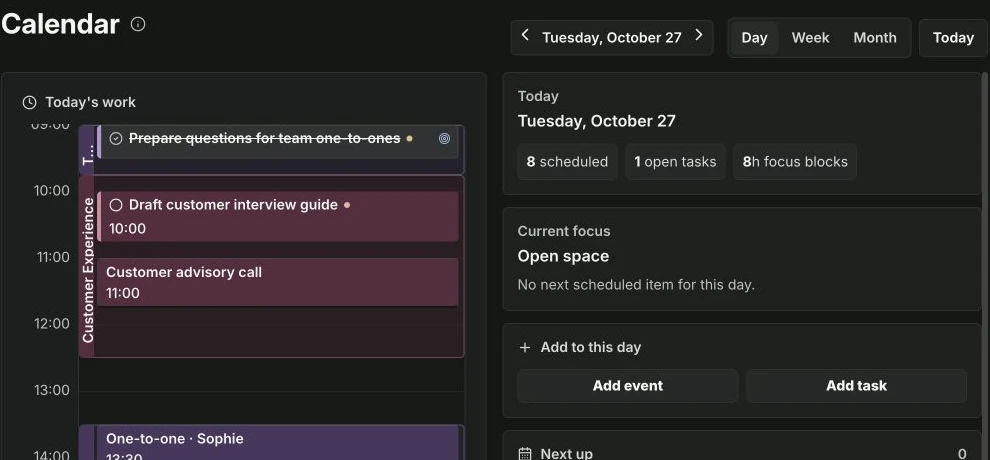
That gives you two useful levels of planning:
Reserve time for a project when you know what deserves attention but have not chosen every task. Schedule an individual task when you want a specific piece of work to have a defined time.
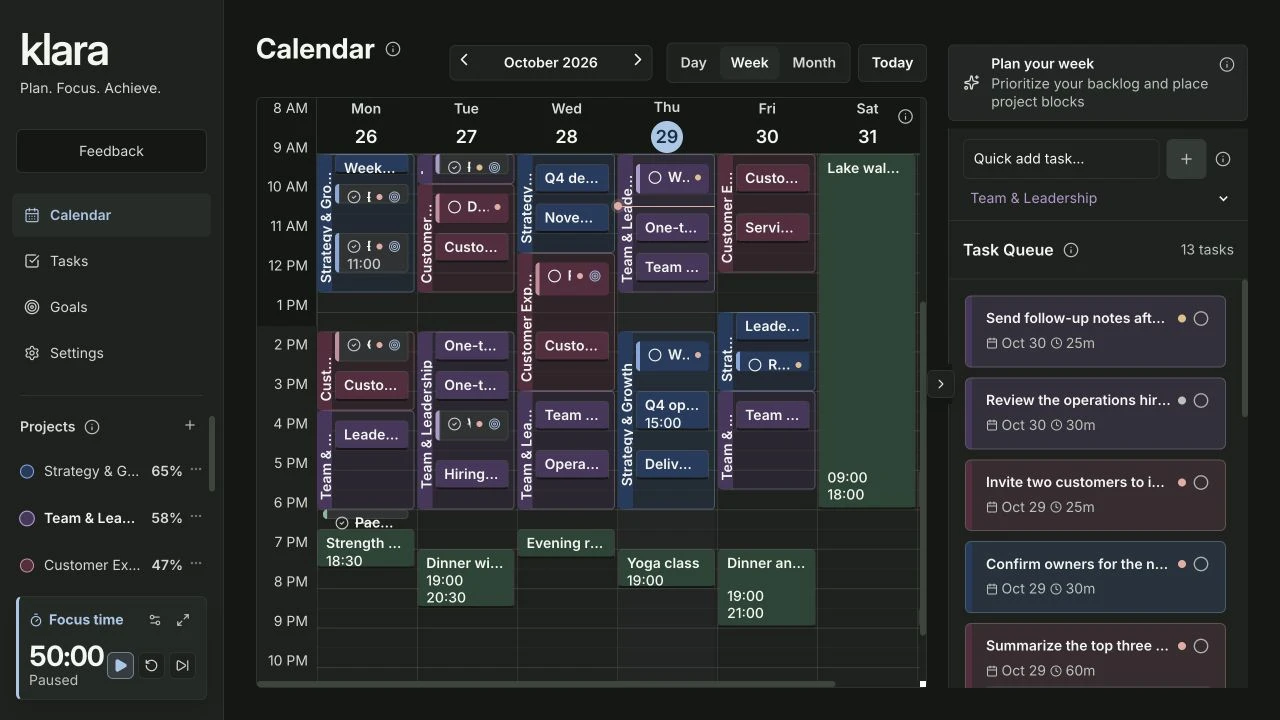
Klara connects that plan with the task's project and, where you have added one, its goal or key result. You can use that context to decide what deserves the available time. It does not mean that reserving a block completes the work or proves progress toward an outcome.
See how to give your next tasks a place beside existing commitments. Plan a realistic week →
Compare reserved project time with individual task slots. Use project blocks →
Can the calendar still change through Google Calendar?
Yes. Your planning decisions and calendar synchronization are different things. Klara supports Google Calendar connections with selected calendars and permissions. Import-only brings Google events into Klara; two-way synchronization also sends eligible Klara changes back.
If an event changes in the connected Google calendar, that change can appear in Klara. “I choose when to schedule a task” does not mean that every connected appointment stays frozen. Check both the task-planning behavior and the connection settings when evaluating the product.
Try one disrupted day before switching
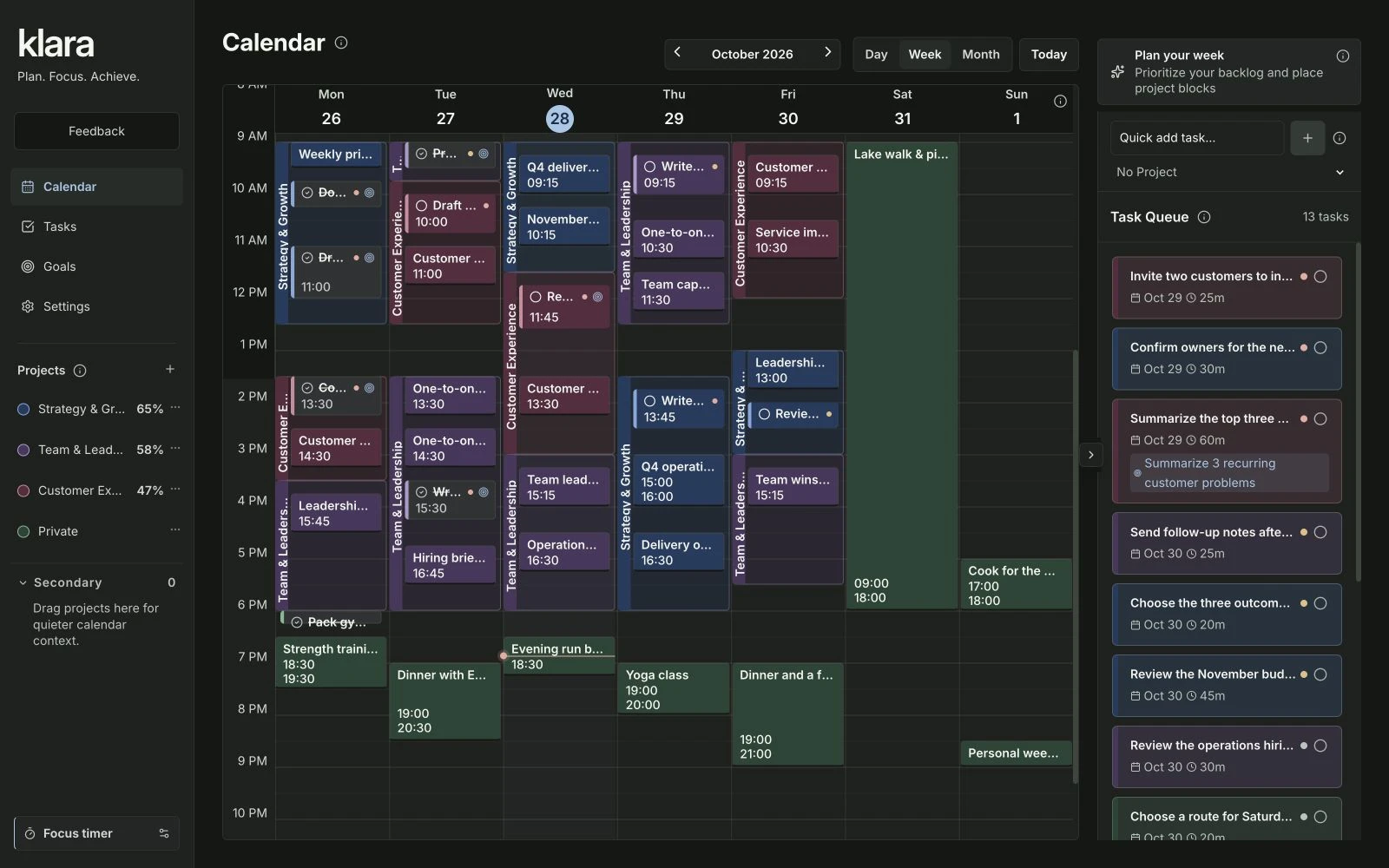
Use a small, non-sensitive example with a few tasks and a meeting. Place one task at a specific time, reserve a separate block for a project, then change the meeting time. Leave one task unfinished.
Check what changed, what stayed in place and which decisions you still need to make. If suggestions are involved, check whether they need approval. If a calendar is connected, distinguish a change imported from that calendar from a planner moving your task.
Also check the practical requirements that would stop you using the tool: your calendar provider, task integrations and whether the workflow works on the devices you use. A planner can handle scheduling exactly as you want and still be the wrong replacement if an essential integration is missing.
Choose the approach that helps you make and maintain a realistic plan. Automatic scheduling can be useful when you want the tool to rebuild the schedule. Manual placement can be useful when deciding where work belongs is part of how you plan. Neither approach removes the need to decide which work matters.
Further reading
About this guide and its examples
Published by Klara. Written with AI assistance; product behavior checked on . Klara task placement, project blocks and Google Calendar permissions were checked against the product audit and public product description. Competitor scheduling descriptions use the linked official documentation, checked on 3 November 2026. These examples are not a full feature comparison or a promise of results.
Screenshots were captured in the fictional Maya Bennett demo workspace on 28–29 October 2026. Illustrative calculations and suggested OKR targets are examples, not measured customer results. For corrections or questions, use the contact details in our legal notice.