A week with clear priorities, scheduled work and room for the unexpected.
A Klara account on desktop and an initial task list.
Meet Maya Bennett, a fictional Head of Operations. All screenshots show her demo workspace in the current Klara interface.
1. How much time do you actually have?
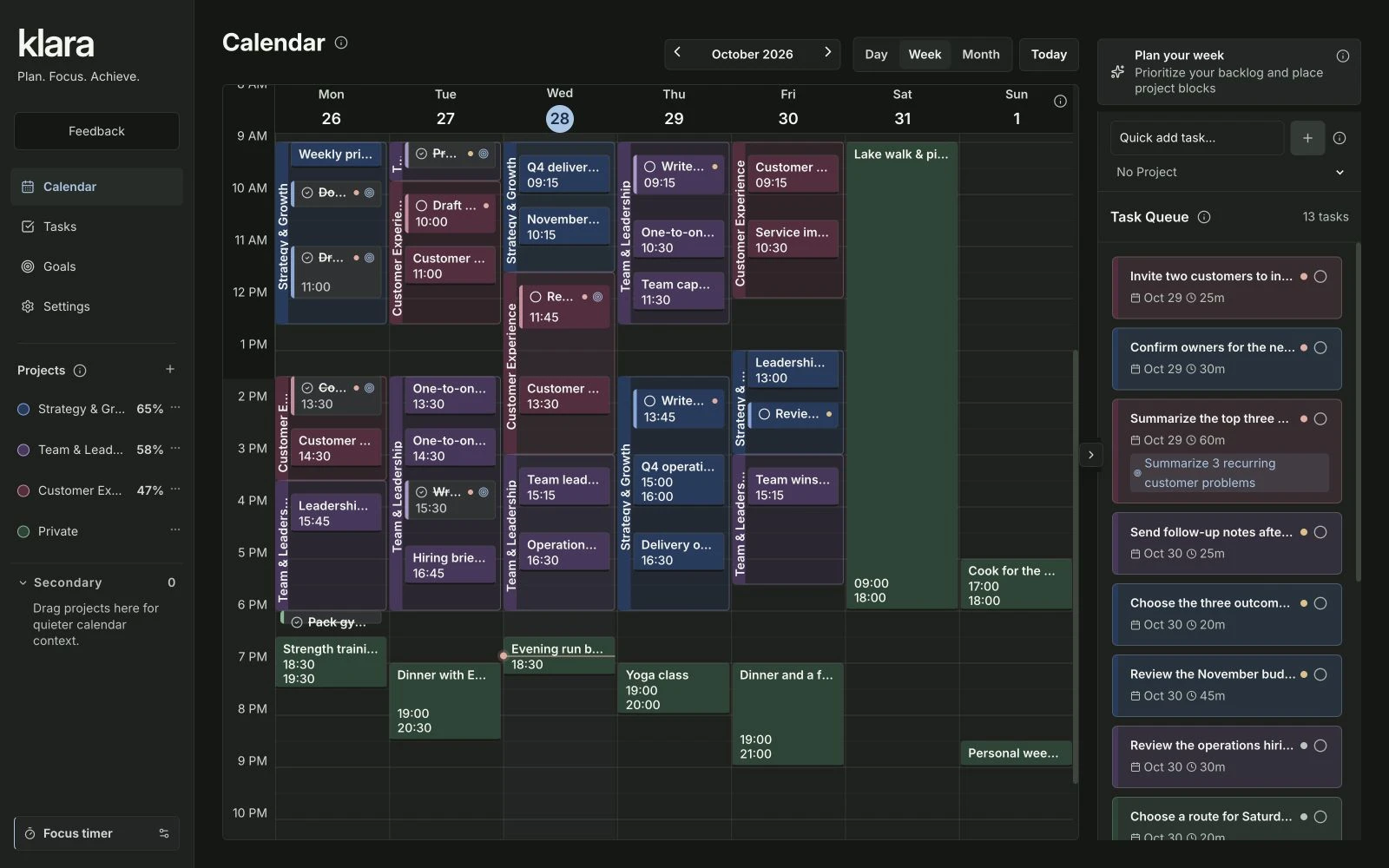
Open Calendar and select Week. Look at fixed meetings and other commitments before adding work. Include breaks, preparation and travel. Maya Bennett, our fictional Head of Operations, starts with team conversations and customer meetings already in her calendar.
2. Which tasks deserve time this week?
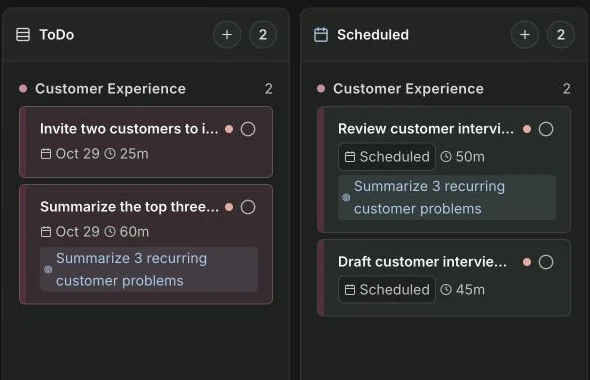
Open Tasks and ask: what should genuinely be finished by Friday? Give each task a concrete next action. Maya chooses customer interview preparation, the Q4 operating plan and team development work. Each supports one of her three work projects.
| Intention | Next task | Estimated time |
|---|---|---|
| Understand customers | Draft customer interview guide | 45 minutes |
| Align company priorities | Draft the Q4 operating plan | 60 minutes |
| Support team leads | Prepare questions for team one-to-ones | 30 minutes |
If your task list mixes ideas, commitments and waiting work, organize those decisions before filling your week. Use Klara’s Kanban board to choose ready work →
3. How do you give tasks a place in the calendar?
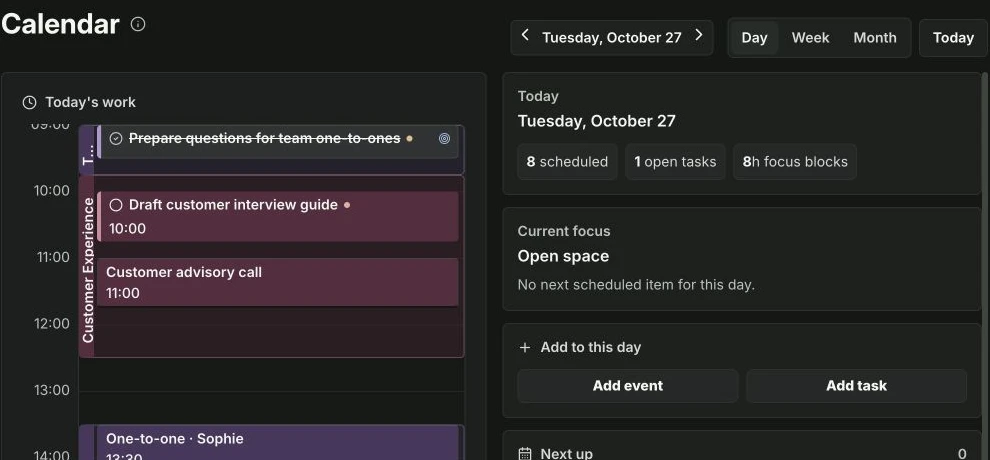
Return to Calendar and place your selected tasks into available slots. Start with the most important work. Check the duration and whether the time suits the task. Maya reserves Tuesday, 10:00–10:45, to draft her customer interview guide before her next meeting.
How much work fits into an available slot?
Count usable time, not just an empty rectangle in your calendar. In this illustrative 90-minute window, a meeting and a break leave 45 minutes for one task. These numbers explain the calculation; they are not extra entries in Maya’s demo.
| Part of the window | Time | What it means |
|---|---|---|
| Available window | 90 minutes | The total time before the next commitment |
| Fixed meeting | −30 minutes | Already committed |
| Break or transition | −15 minutes | Reserved rather than counted as work |
| Time for one task | 45 minutes | Choose an outcome that fits |
When several tasks belong to the same work area, reserve the project’s time first and choose the individual actions inside it. Plan project blocks around related work →
4. What should you review when the plan changes?
Take a short look at your week each morning. When urgent work arrives, decide which other task can wait. At the end of the week, compare your estimates with what happened. Maya keeps Friday afternoon free for a short review and the next set of decisions.
- CheckCommitments and free time
- ChooseImportant tasks
- ScheduleSpecific time slots
- ReviewLearn from the week
About this guide and its examples
Published by Klara. Written with AI assistance; product behavior checked on . Calendar views, task durations and actual scheduled task slots were checked for this workflow.
Screenshots were captured in the fictional Maya Bennett demo workspace on 28–29 October 2026. Illustrative calculations and suggested OKR targets are examples, not measured customer results. For corrections or questions, use the contact details in our legal notice.