A connected planning view that separates outcomes, next actions, commitments and capacity.
A Klara account on desktop with a project, a goal and a few tasks or events.
Meet Maya Bennett, a fictional Head of Operations. All screenshots show her demo workspace in the current Klara interface.
1. What connects to-dos, events, projects and goals?
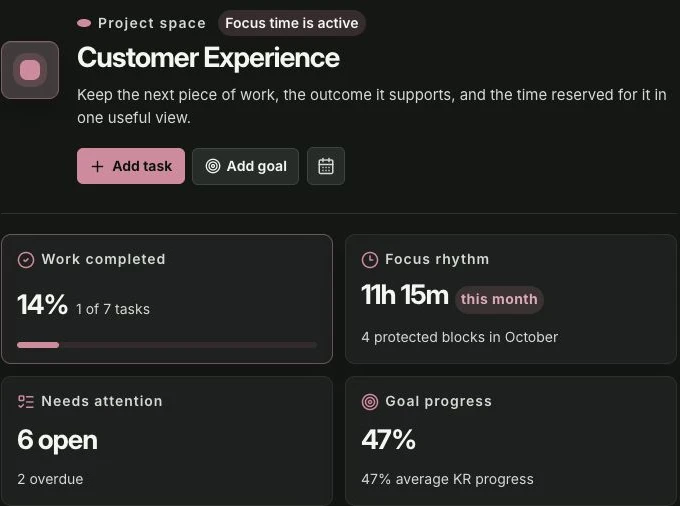
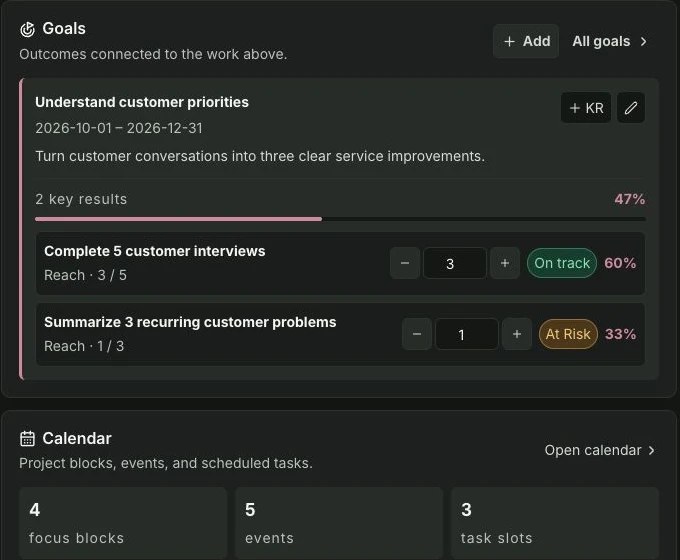
Start by opening a project in the sidebar. Maya uses Customer Experience for customer research and service improvements. Its overview brings Next tasks, Goals and Calendar together for that project, so she can compare the work she intends to do with the outcome it should support.
| Part | Question it answers | Connection in Klara |
|---|---|---|
| Project | Which area does this belong to? | Groups related tasks, goals and calendar items |
| Goal and key results | What should change, and what evidence will show it? | A goal belongs to a project; selected tasks can link to its key results |
| To-do / task | What concrete action comes next? | Belongs to a project when assigned; can have a calendar slot |
| Event | What commitment happens at a particular time? | Its Calendar field identifies the project context in this demo |
| Project block | Which area gets this period of attention? | Reserves a broader period for one project |
2. How do you connect a to-do to a goal?
Choose a task with a direct contribution. Maya’s “Review customer interview notes” belongs to Customer Experience and links to “Summarize 3 recurring customer problems”, a key result under “Understand customer priorities”. In the task editor, check Project and use Link to Key Results to select the relevant result.
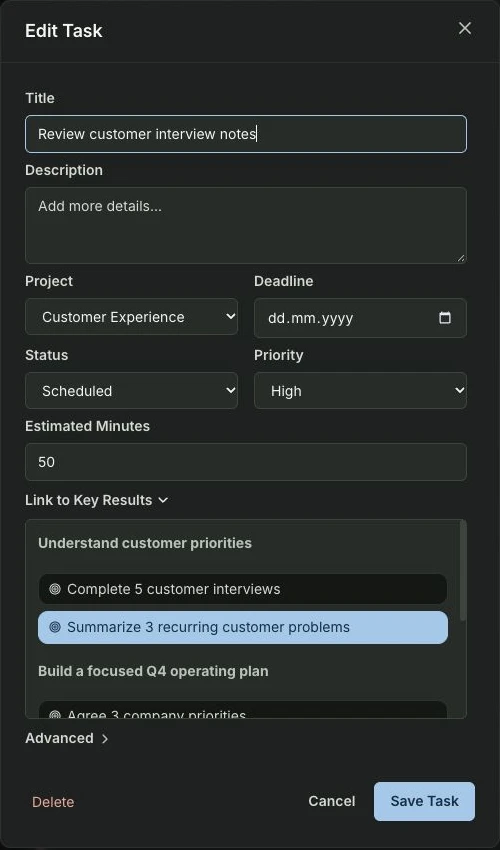
The project assignment organizes the work; the key-result link explains its purpose. Most everyday tasks can stay unlinked. Maya does not need to attach routine administration or personal plans to a key result just to keep them in the right project.
For the full linking workflow, follow the step-by-step guide. Connect a goal to its next concrete task →
3. How do events and task slots fit into the same plan?
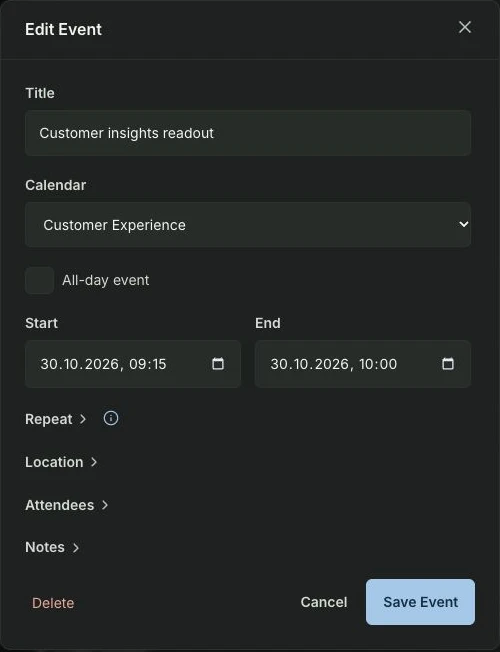
Events and tasks play different roles. Maya’s “Customer insights readout” is a meeting. Its event editor shows Customer Experience in the Calendar field, alongside the meeting’s start and end time. Sharing the project context does not turn the meeting into a to-do or directly link it to a key result.
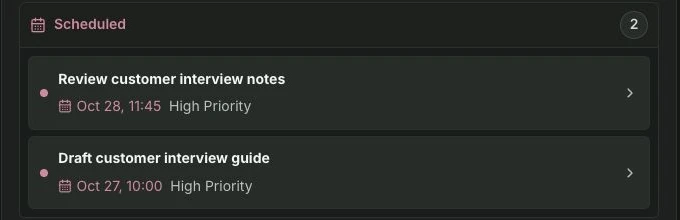
A task slot reserves time to do a particular action. In Maya’s demo week, reviewing interview notes has a 50-minute entry on Wednesday 28 October, 11:45–12:35. The project overview shows its calendar date beside the task. Check the actual calendar entry as well as the Scheduled status; a status alone does not prove that time was booked.
4. What should you check before adding more work?
Review fixed events before placing another task. A project block can reserve a broader period for a work area, with meetings and task slots inside it. Those entries use the same period: adding a block’s duration to the work inside it would double-count your capacity.
- ProjectWhich work area?
- Goal & KRWhy, and what evidence?
- TaskWhat action comes next?
- CalendarWhen does it fit?
When you want to reserve time for an area before choosing every individual task, start with a project block. Use project blocks to give work a time context →
5. How do you review progress without mixing up the numbers?
Read each summary for the decision it supports. Maya’s overview shows 14% of tasks completed and 47% goal progress. Those numbers answer different questions. The Focus rhythm summary describes reserved project-block time, not a record proving that those hours were worked.
| Summary | What to use it for | What it does not establish |
|---|---|---|
| Work completed: 14% | See completed tasks against the project’s task count | That the customer outcome is 14% achieved |
| Focus rhythm: 11h 15m | Review project-block time reserved this month | Actual time worked or extra free capacity |
| Needs attention: 6 open | Find unfinished work, including overdue items | That all open tasks fit into the next week |
| Goal progress: 47% | Review the recorded key-result values | That completing more cards will prove the outcome |
The calendar totals and Next seven days cover different periods; check the visible dates. Finish your review with one decision: keep the next action, reserve time for it, or change the plan because the evidence or available time has changed.
About this guide and its examples
Published by Klara. Written with AI assistance; product behavior checked on . Project overview filtering, task-to-key-result links, the event Calendar field and actual task-slot dates were checked in the demo and implementation. Reserved project time, task completion and key-result progress are separate summaries.
Screenshots were captured in the fictional Maya Bennett demo workspace on 30 October 2026. Illustrative calculations and suggested OKR targets are examples, not measured customer results. For corrections or questions, use the contact details in our legal notice.