A task board that separates ideas, commitments, scheduled work and finished outcomes.
A Klara account on desktop and a few tasks.
Meet Maya Bennett, a fictional Head of Operations. All screenshots show her demo workspace in the current Klara interface.
1. What do Klara’s Kanban columns mean?
Open Tasks. The board has ToDo, Scheduled, Hold and Done columns, with Backlog available separately. Maya groups her board By Project so leadership, strategy and customer work stay easy to distinguish. The columns describe the state of the work; project colors describe where it belongs.
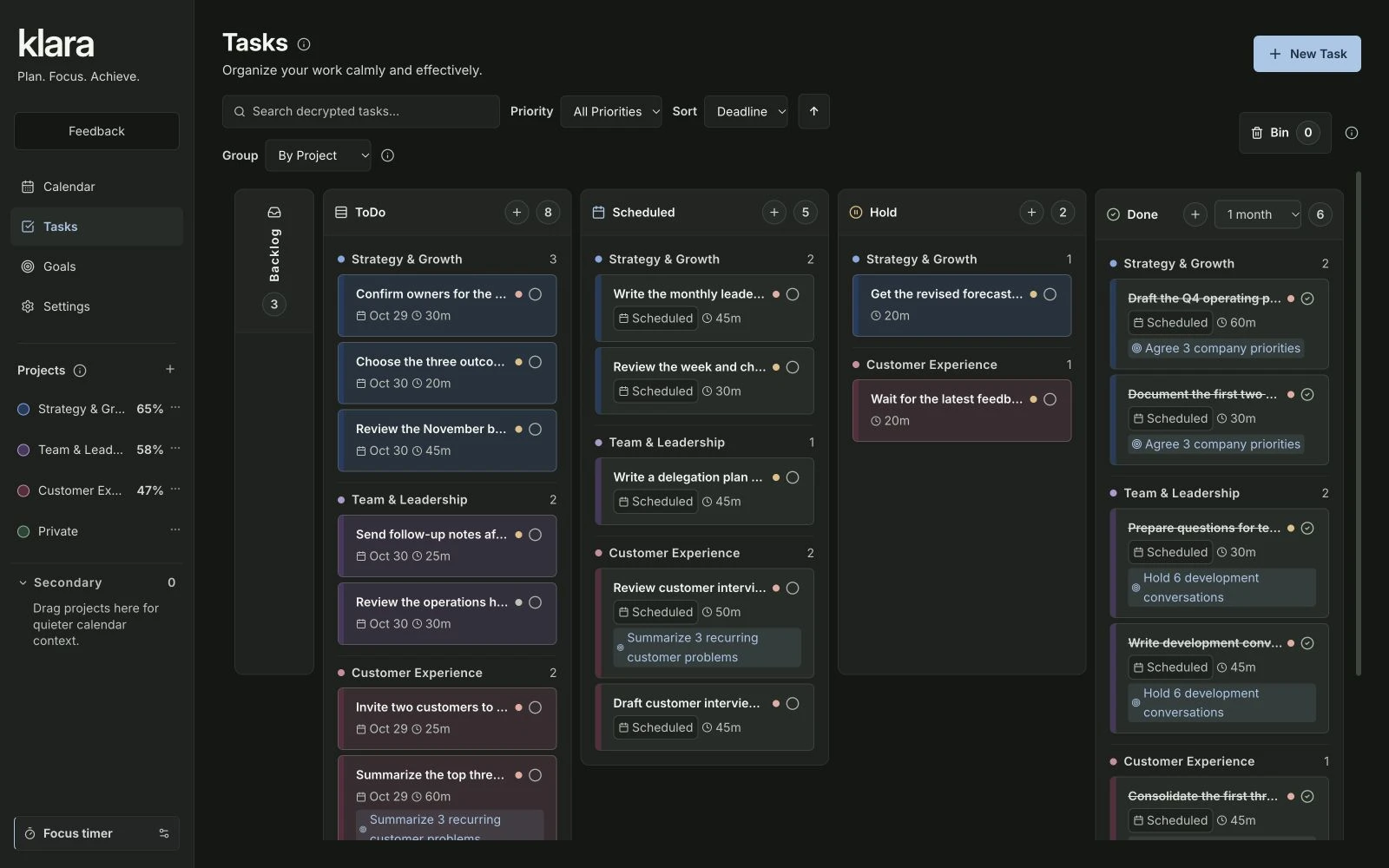
| Place | Meaning | Maya’s example |
|---|---|---|
| Backlog | Worth considering later | An improvement idea without a commitment |
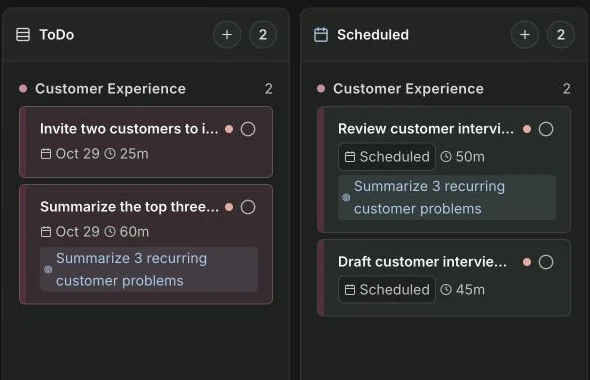
| ToDo | Chosen work that needs a next step | Invite two customers to interviews |
| Scheduled | Work moved into the scheduling workflow | Draft customer interview guide |
| Hold | Waiting for an input or decision | Get the revised forecast from Finance |
| Done | The intended result is finished | Draft the Q4 operating plan |
2. How do you choose ready work?
Open Backlog to review ideas, then move the ones you intend to act on into ToDo. Use a concrete verb and a result you can recognize. Add the project, priority and a realistic duration. A due date says when the task must be finished; a duration estimates the work it needs.
3. How does a card become a calendar timebox?
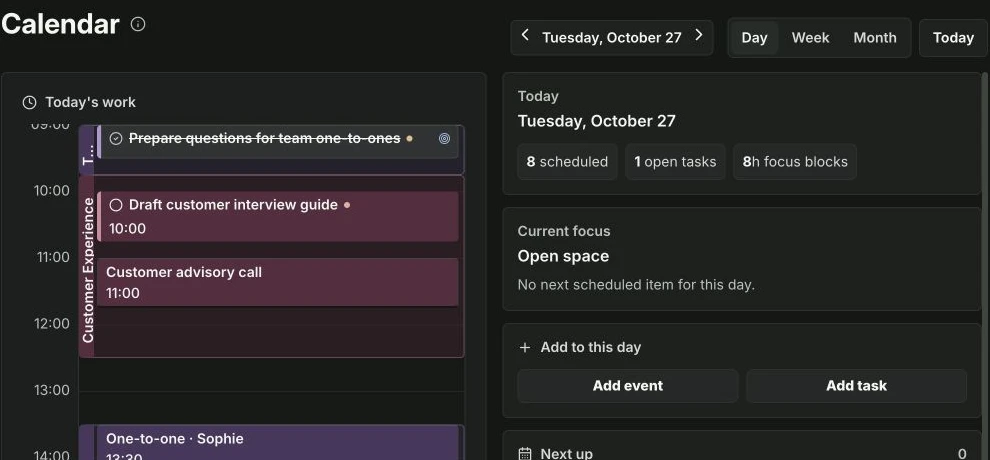
Move a card to Scheduled to open the scheduling step. Choose an actual time, or use Calendar and its task queue to place the task. Maya gives her interview guide 45 minutes on Tuesday morning. That limited work session is a timebox: one task, a defined result and a time to reassess.
Before assigning more timeboxes, check how much time remains after meetings and breaks. Build a realistic weekly plan →
4. When should a card move to Hold or Done?
Move a task to Hold when progress depends on someone else, and record what you are waiting for. Review those cards during weekly planning. When the outcome is complete, use the task’s completion button or move it to Done. If only part is finished, write a smaller next action and plan another session.
- CaptureIdeas in Backlog
- ChooseReady work in ToDo
- ScheduleA real calendar slot
- ReviewFinish or choose the next step
Can you use the board without scheduling every task?
Yes. Backlog, ToDo, Hold and Done help you organize work even when you have not reserved a time for every card. Choose only the tasks you intend to work on soon. A due date records when something must be finished; a calendar slot records when you plan to do it.
| Need | Use | Check |
|---|---|---|
| A final completion date | Due date | Is this a real deadline? |
| An estimate of effort | Estimated duration | Is the task small enough? |
| Reserved working time | A real calendar slot | Does it fit around existing commitments? |
After choosing a task and reserving time, the timer can provide focus and break cues. Use the Pomodoro timer for the work session →
About this guide and its examples
Published by Klara. Written with AI assistance; product behavior checked on . Board columns, moving a card to Scheduled, the option to skip scheduling and the real-calendar-slot badge were checked.
Screenshots were captured in the fictional Maya Bennett demo workspace on 28–29 October 2026. Illustrative calculations and suggested OKR targets are examples, not measured customer results. For corrections or questions, use the contact details in our legal notice.